How to Connect to MS SQL Azure from Data Loader


You can transfer data to and from MS SQL Azure online databases using Data Loader. To connect, you'll need the server's fully qualified name, an open firewall rule for your IP, and your login credentials.

Step 1: Get Your Server Address

To connect to an Azure SQL database, you'll need the fully qualified server name, database name, and login information. You can find the server address in your Azure Portal:

  1. Log in to the Azure portal.
  2. Select SQL Databases from the left-hand menu, then click your database on the SQL databases page.
  3. On the Overview page for your database, note the fully qualified server name (hover over it for a Click to Copy option).
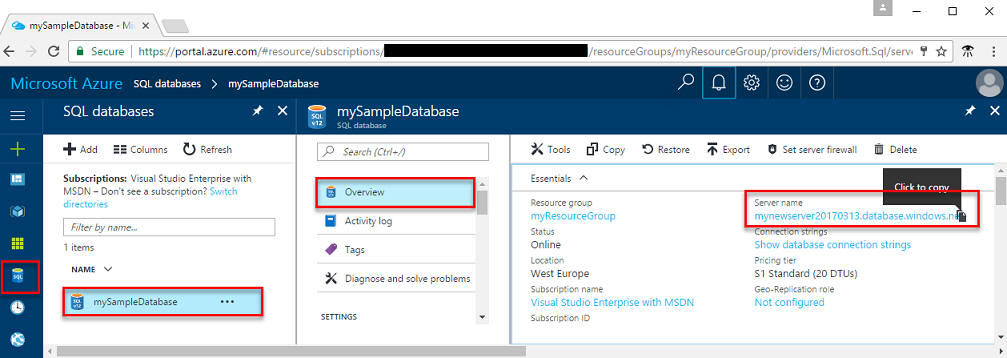
Connect to MS SQL Azure database from Data Loader

If you forget your Azure SQL Database server login information, navigate to the SQL Database server page to view the server admin name.
Step 2: Open the Firewall for Your IP

You also need to add your IP address to the Azure Firewall to connect from your computer. The SQL Database service creates a server-level firewall that blocks external applications unless a rule is created to open it for specific IP addresses.

To add your IP address as an exception:

  1. Log in to the MS SQL Azure Portal.
  2. Click SQL Databases from the left-hand vertical menu.
  3. You'll see the list of databases in your Azure server.
  4. Click the desired database to see its Overview page.
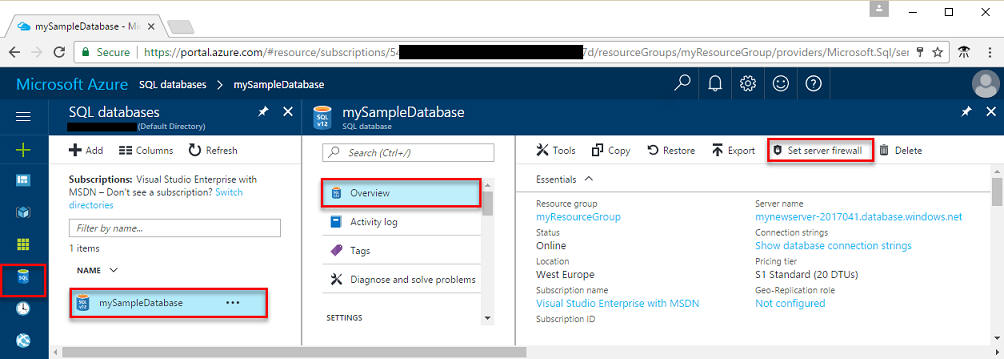
  5. On the Overview page, click Set Server Firewall Rule at the top of the menu, as shown below.

Set server firewall rule in Azure

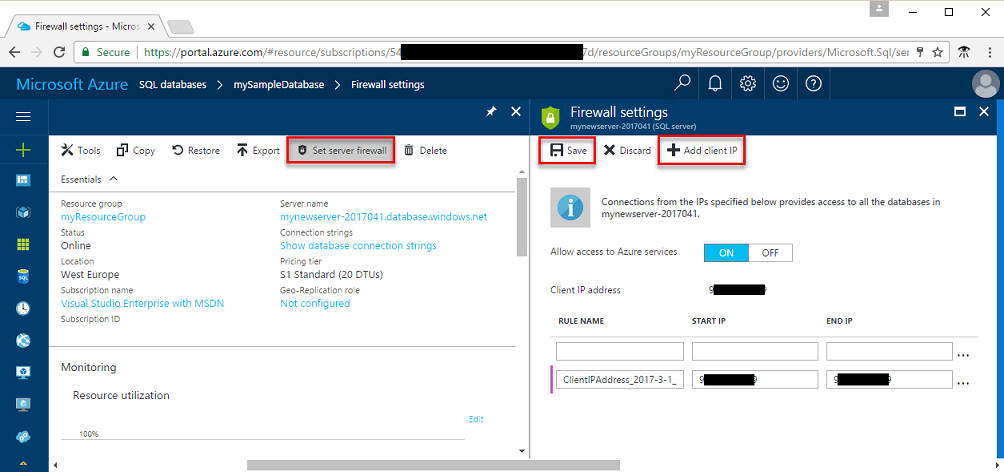
  1. Click Add client IP on the toolbar to add your current IP address to a new firewall rule. A firewall rule can open port 1433 for a single IP address or a range of addresses.

Add client IP to Azure server firewall

  1. Click Save. A server-level firewall rule is created for your current IP address, opening port 1433 on the logical server.

Step 3: Connect from Data Loader

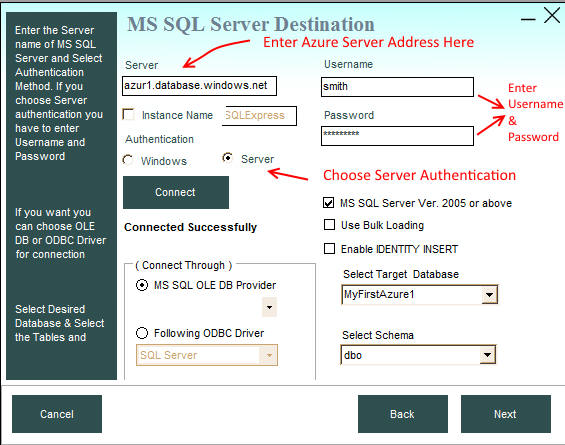
Once you've added the firewall exception and have your Azure server address, username, and password, connect through Data Loader by entering the Azure server address in the Server text box, choosing the Server Authentication method, and entering your username and password, as shown below.

Data Loader: connect to MSSQL Azure Cloud database