Importing Arabic Data (Unicode) into MySQL


Importing Unicode data — Arabic, Chinese, Korean, and more — is one of the most frequently asked questions on database forums. Today we'll show you how simple it is to import data from any Unicode format into MySQL, MS SQL Server, Oracle, MS Access, or FoxPro using Data Loader.

Data Loader can directly transfer Unicode / non-Unicode data from one database to another automatically. In this article we'll walk through transferring data from a Unicode CSV / text file to MySQL, assuming we have Arabic data in TAB-delimited format that needs to go into a MySQL table.

Before we begin, let's assume:

Let's Start

The target MySQL database needs to be Unicode-enabled. If loading into an existing database, make sure its collation supports Unicode — you can change it any time with an ALTER statement:

ALTER DATABASE `test` COLLATE 'utf8_general_ci';

If the target database doesn't exist yet, create it with a Unicode-supporting collation:

CREATE DATABASE `test` COLLATE 'utf8_general_ci';

Once the target database is ready, we can move to the next step.

We have Arabic data in a TAB-delimited format, as shown below:
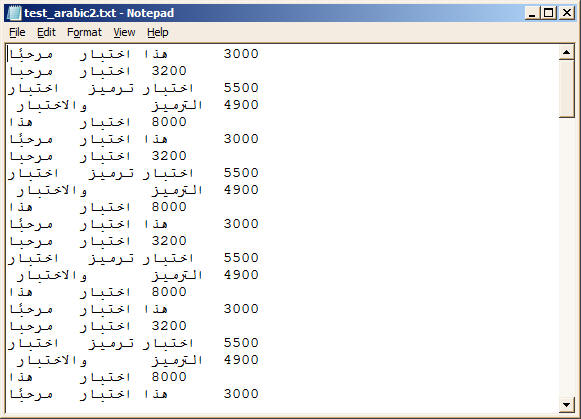
Import Arabic data into MySQL

Open the Text File in Excel

  1. Start MS Excel
  2. Place the cursor in any empty cell and click the Data menu
  3. Click Get External Data → From Text in the toolbar, as shown below
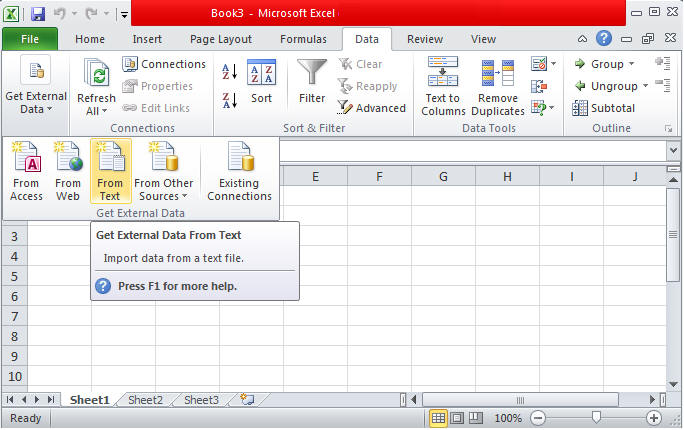
    Convert CSV to Excel

  4. Excel will prompt you to select the text file — select your file and click Open
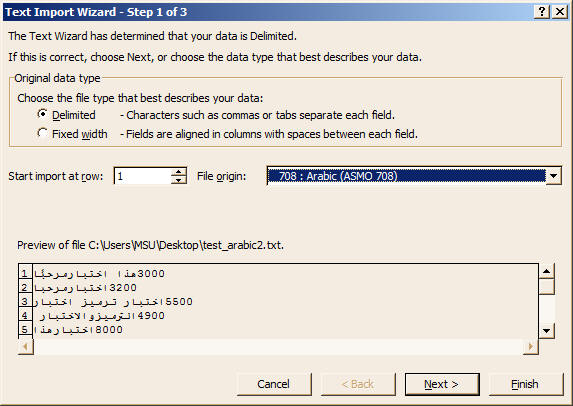
  5. Excel shows a dialog to select the character set. By default it's Windows ANSI, but since our data is Unicode, select the Arabic character set

    Arabic data import into Excel

    then click Next
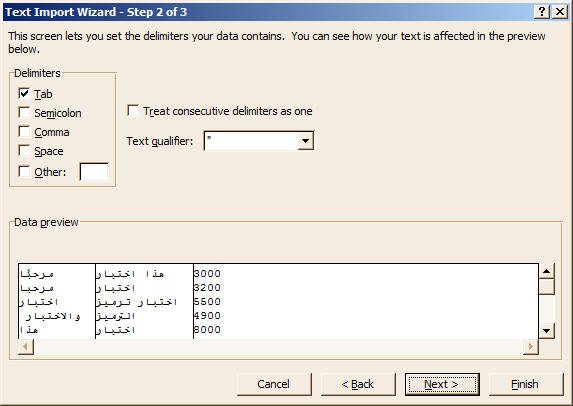
  6. The Import Wizard asks you to choose the delimiter format (tab, comma, etc.) and the text qualifier

    Import data into Excel step 2

    select the appropriate options and click Next
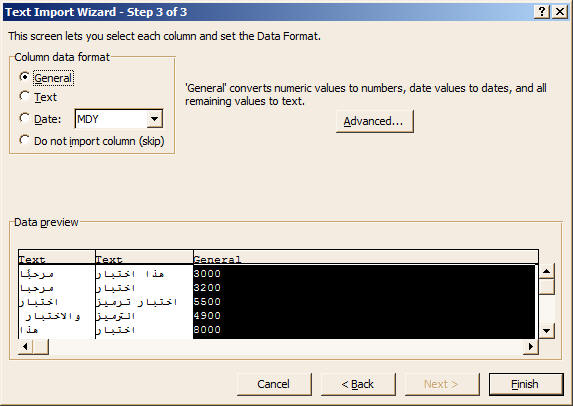
  7. The next screen lets you define the datatype for each field. In our case, we set the first two columns to Text and left the third as General

    Import data into Excel wizard step 3

    then click Finish to import the data into Excel
  8. The Excel sheet is now populated with your data
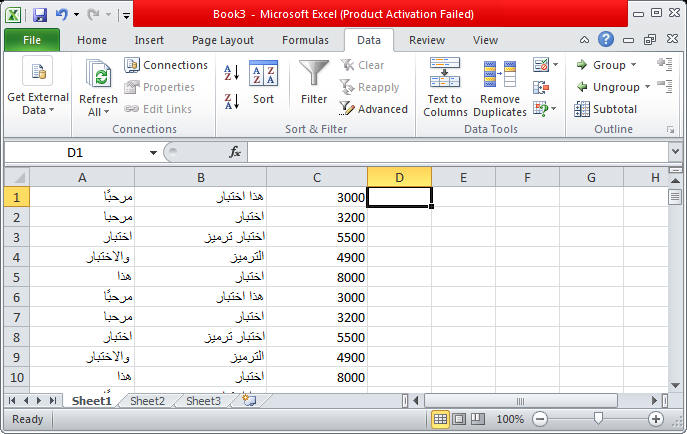
    Excel Arabic data imported

Save this Excel file in .XLSX format.
Import into MySQL with Data Loader

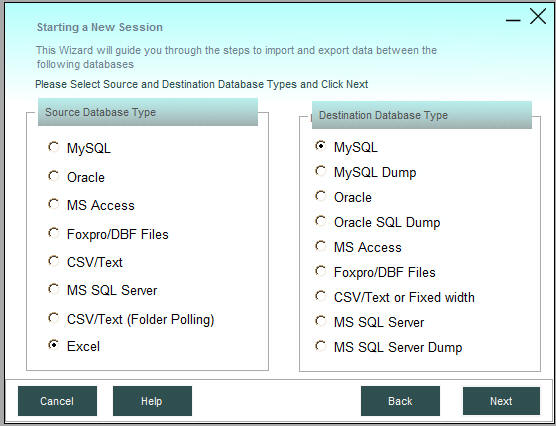
Start Data Loader and click Create New Session. On the "Select Source and Destination database type" screen, choose Excel as source and MySQL as destination, then click Next.

Excel to MySQL

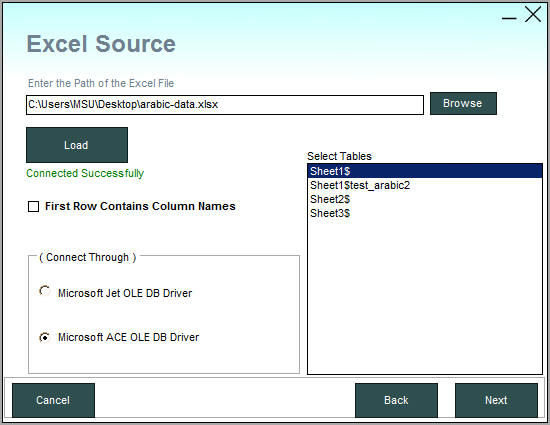
Data Loader will prompt you to select the XLSX file and choose the worksheet to import. Click Browse, select the saved Excel file, choose Sheet1$, and click Next.

Excel source to migrate to MySQL

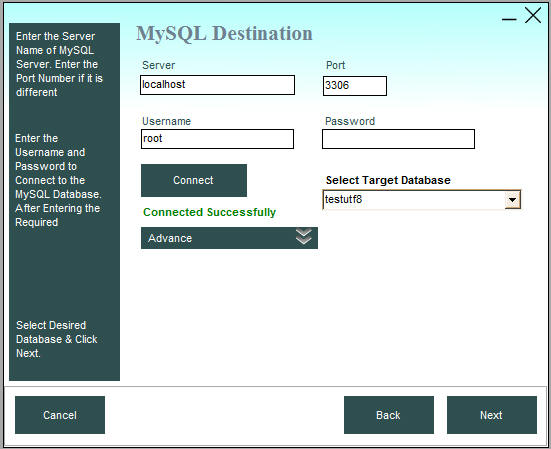
Next, connect to the target MySQL database by entering your server address, username, and password. Once connected, Data Loader populates the databases dropdown — select the Unicode-enabled database (in this example, testutf8).

MySQL target database

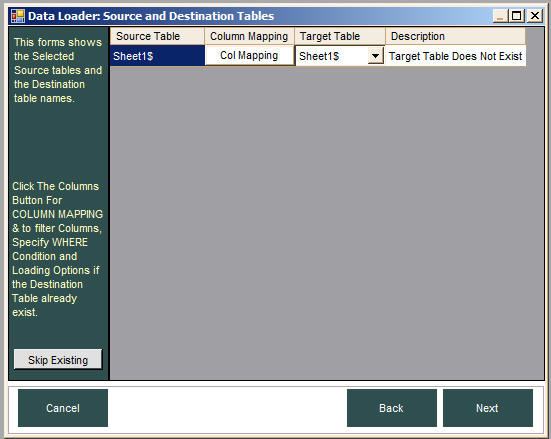
Data Loader then shows the Source & Destination Tables screen, where you can choose the target table and define column mappings via "Col Mapping." Since we don't need any changes, we'll click Next.

Excel to MySQL conversion tables

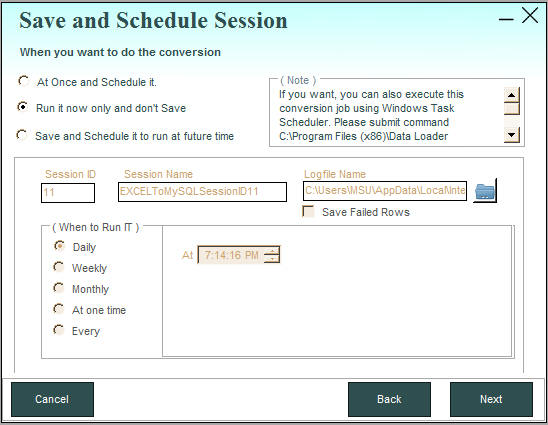
On the next screen, define the scheduler settings for this session — since we only need this conversion once, choose "Run it now only and don't save" and click Next.

Data Loader schedule Excel to MySQL transfer

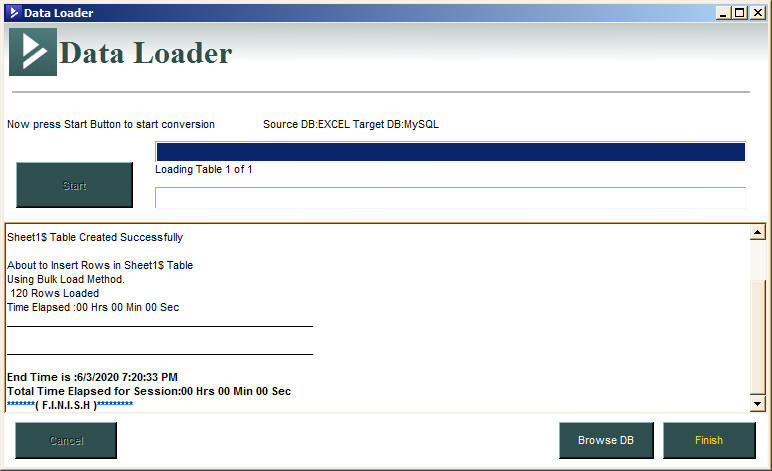
Click "Start Loading" to begin the conversion — you can watch the progress in the text box.

Excel to MySQL conversion complete

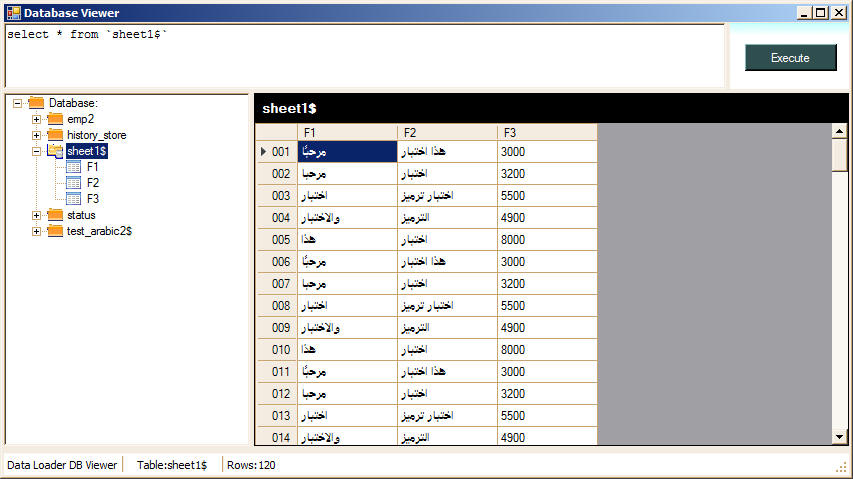
Once finished, click Browse DB to view the transferred data.

Arabic data migrated to MySQL

This completes our example of importing Arabic data from CSV / text file to MySQL, using Excel as an intermediate step to convert the text file before loading into MySQL.

If you have Unicode data in another database already, there's no need for Excel — Data Loader can directly convert Unicode data between MS SQL Server, Oracle, Access, FoxPro, and MySQL.